Ever feel like all the business tools offered by the big social sites require a Masters in Business Marketing?
You just wanted to set up a quick autoresponder to a DM. Instead you're staring at a settings menu using words like "automations," "conditions," and "triggers," like you're coding a robot instead of answering someone's basic question about coming in for service or finding out when you're open.
The good news is you don't need a marketing degree! Meta (Facebook, Instagram, and WhatsApp) already built a tool that answers the common stuff for you, so you can focus more on posting and growing your following, and less on being a customer service rep during your "off" hours.
It's called Inbox automations, and it's sitting inside Meta Business Suite. Two features do most of the work: Instant Reply and Away Message. There's also a sneaky third one, keyword-triggered replies, that almost nobody uses because almost nobody knows it exists.
We're covering all three for you. Plainly. With screenshots. No degree required (although I may have had a little help from AI to figure it out myself...).
Now, because I know I'm wordy, feel free to use this handy little Table of Content to jump down to the How Do I section. You won't hurt my feelings, I promise!
What is inbox automation (spoiler - it's an autoresponder)?
Let's stop the confusion before it starts: this is not a chatbot. This is more of Meta's version of a voicemail message:
"Thanks for calling Sal's Place, located at 123 Main St. We're gettin' to know some folks in our lobby, so leave a message after the beep!" beeeeeeeeeeeeeeeeeeeeeeeeep
If you don't remember a time when people recorded their own answering machine messages, then think less "robot receptionist" and more "out of office" reply on email, except people will actually read it, and it helps give them answers instead of just letting them know they should try again at 9 AM sharp on Monday morning.
You're not replacing yourself with AI or anything like that. You're just giving yourself back those 3 minutes per copy and paste reply you would have spent all evening doing.
By now you're probably thinking, "okay, but why are there three different tools???" The answer, my friend, is timing.
Instant Reply is exactly what it sounds like. Someone sends you a message, and they immediately get a message back. There are a lot of ways you can use this to tell people the basics, like a link to your website, or your hours, or FAQs. For EnRoute customers, this is the perfect place to drop your EnRoute link!
Meta's help docs aren't super clear on whether this reply is sent to the first ever message only, or the first message after a certain amount of time. Even my AI buddy wasn't sure, but if I figure it out I'll update this post!
Away Message is, again, exactly what it sounds like. This message goes out to anyone who messages you "after hours" or when you've blocked off some "me" time (because you really need to take a break once in a while).
This one is your out of office message, but for Facebook and Instagram. You would use it to include any standard links (like your EnRoute page link) or answers to common questions that can hold people over until you're available to speak with them again.
The Instant Reply and Away Message are ways to help manage expectations in your DMs and inbox. Using the autoresponders doesn't mean you can ignore your messages, though. You'll still need to look through and see if anyone's question wasn't answered or if they had a follow up, which is why it's important that you're honest about when you'll be able to check back in with them.
Now, the Keyword triggers can be useful if you don't want to turn on Auto Reply, but you also don't want to type out the same answer fifty times a day.
Let's say half your messages are people asking if they can just walk in for service, or if they need to book ahead. You can set up a keyword trigger to look for "book, appointment, schedule, come in, waitlist" in the messages and, if found, send an automated reply telling them how to get on the books (or send your EnRoute link).
Easy peasy, right? Nope, because the tool is case and spelling sensitive, which means that what you put in as a keyword has to exactly match what they type for the reply to be triggered. So if they type "Book" with a capital B, or "can you fit me in" instead of "can I just come in," they're not going to get the reply in this example, because this feature is picky. Meta built a keyword matcher with no wiggle room.
How do I set it up, and why can't Meta just call it an autoresponder?
Alright, deep breath. First of all, it's Meta and they have to be special. Second of all, "auto reply" is less letters, but also less well know. Again, it's Meta.
Now, this is the part where I have to be boring and precise instead of witty and charming, but I will try to make it kinda fun, if I can. Ok, let's get through it together.
One heads up before we start: if you want the keyword trigger tool, you'll need to set that up on a computer, not your phone. Meta only lets you build those on desktop. Instant Reply and Away Message work on both, so pick whichever you're more comfortable with and go!
Desktop Instructions
Accessing the Setup Menu on Desktop
1. Open Meta Business Suite and go to your Inbox.
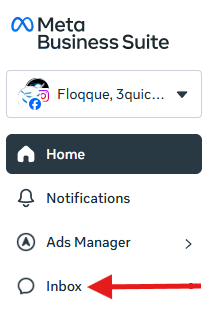
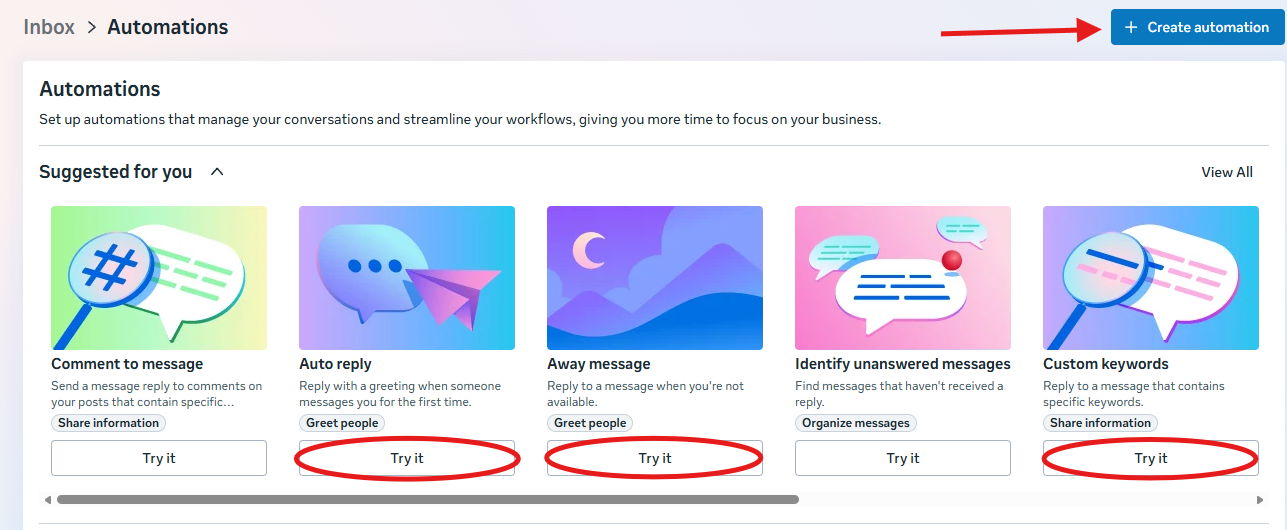
2. Click Automations.

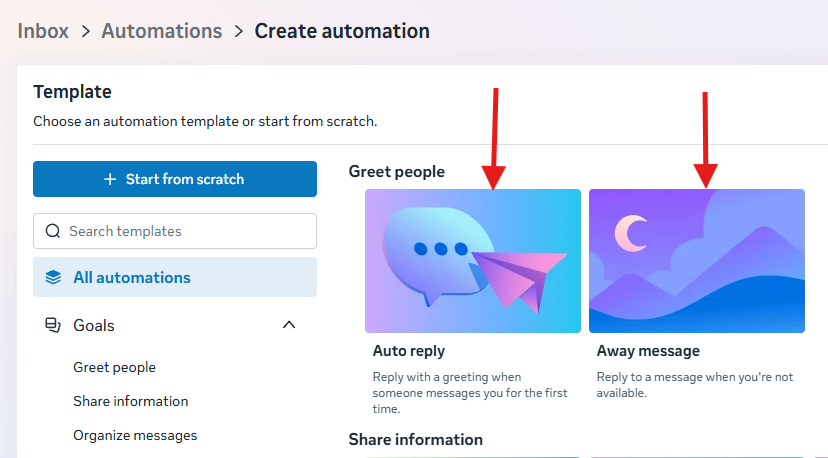
3. Click Create automation, top right, to browse all the templates. (Or if you already spotted the one you want on the Automations page itself, hit Try it on that card instead, same result, one less click.)
Setting Up Auto Reply on Desktop
If you selected the Auto Reply or Instant Reply template, these are your next steps. Note: Meta's own labeling is a little inconsistent here, you may see this listed as "Instant reply" in one spot and "Auto reply" in another. Same feature, just Meta being Meta.
1. Choose which channels (Messenger and/or Instagram) you want this automation to run on.
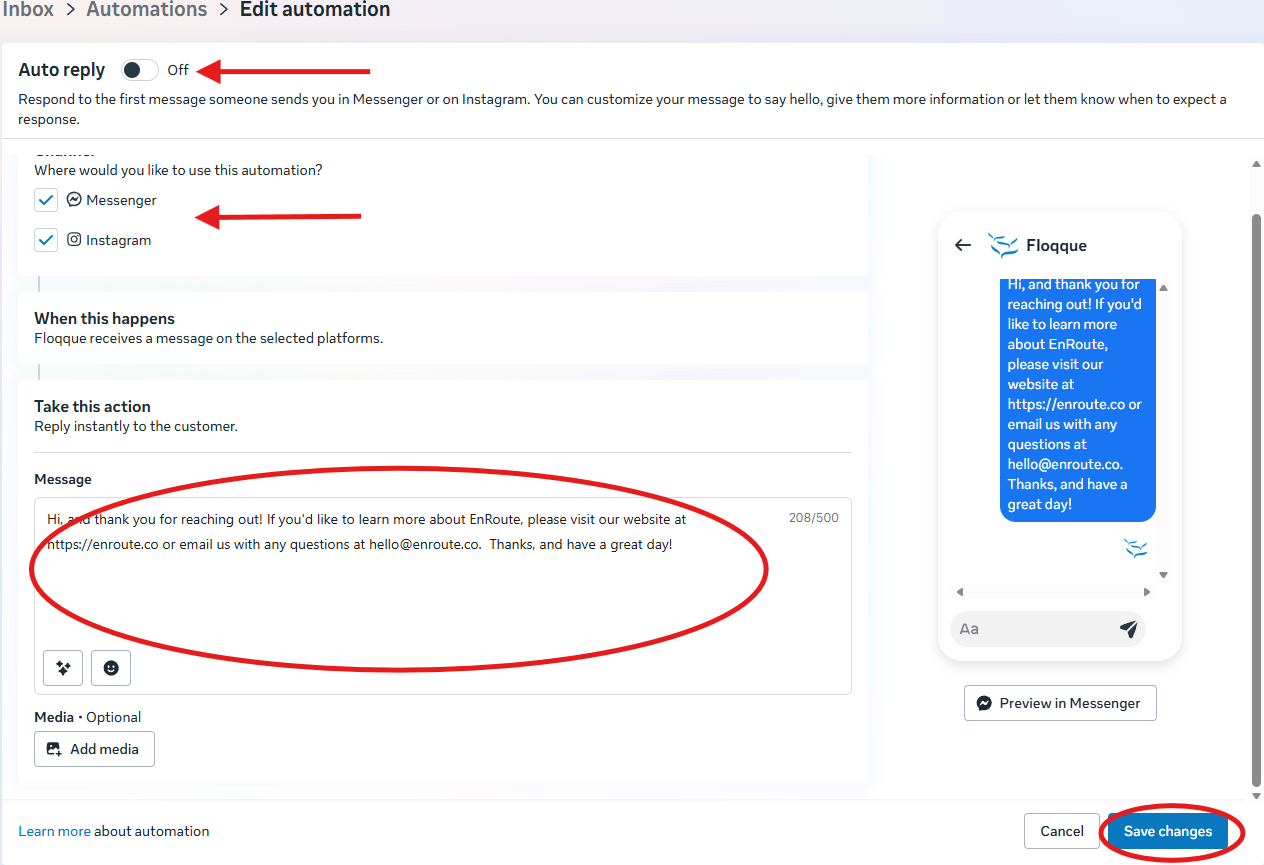
2. Write your message in the box below. This is where your EnRoute link goes, if you've got one. Watch the live preview on the right so you know exactly what people will see, and keep an eye on the character counter, there's a 500-character cap.
3. Check the toggle at the very top of the screen to make sure it's flipped to "ON." Saving your message doesn't automatically do that.
4. Hit Save changes.
Give it a minute. Sometimes it can take a little while to actually go live. Then send yourself a test message to make sure it does what you want it to do.
Setting Up Away Message on Desktop
If you selected the Away Message template, these are your next steps. The one thing that's different: Timing.
1. Choose which channels (Messenger and/or Instagram) you want this automation to run on.
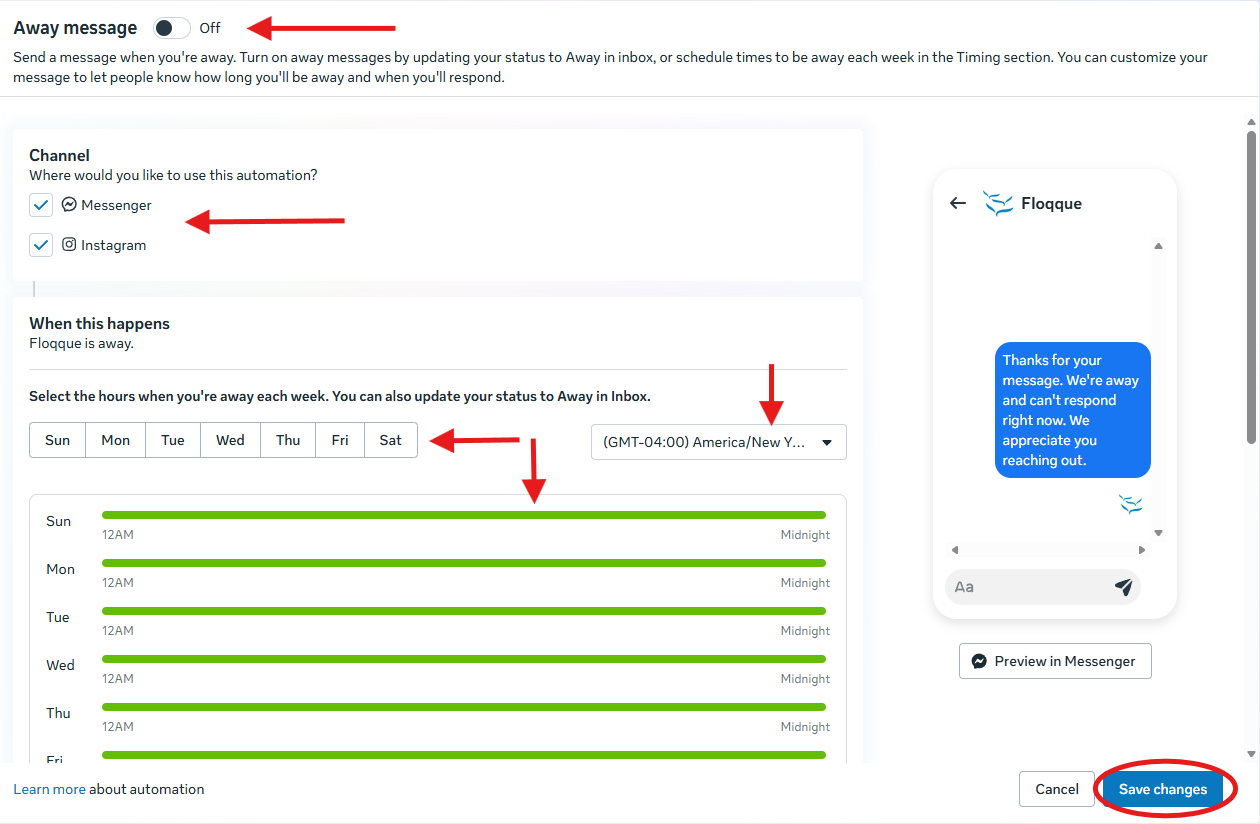
2. Set your away hours. You've got two options: manually flip your status to "Away" whenever you're actually stepping out, or schedule specific days and hours every week (with your timezone) so it handles itself without you remembering to flip anything.
3. Write your message in the box below. This is where your EnRoute link goes, if you've got one. Watch the live preview on the right so you know exactly what people will see, and keep an eye on the character counter, there's a 500-character cap.
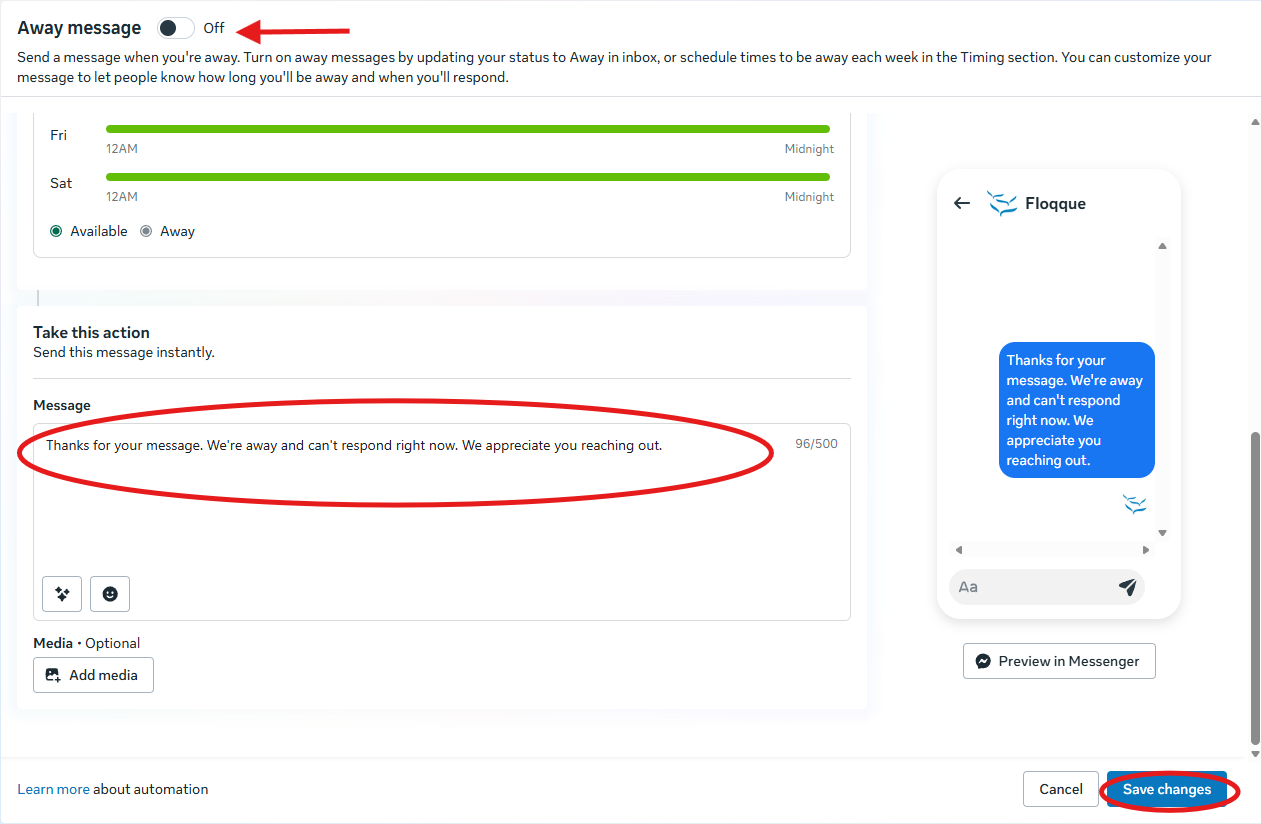
4. Check the toggle at the very top of the screen to make sure it's flipped to "ON." Saving your message doesn't automatically do that.
5. Hit Save changes.
Send yourself a test message (outside your scheduled hours, or after manually flipping your status to "Away") to confirm it works.
Setting Up Custom Keyword on Desktop Only
If you selected the Custom Keywords template, these are your next steps.
1. Give it a name. This one's just for your own reference, customers never see it, so "Walk-in Question" beats "Automation 5."
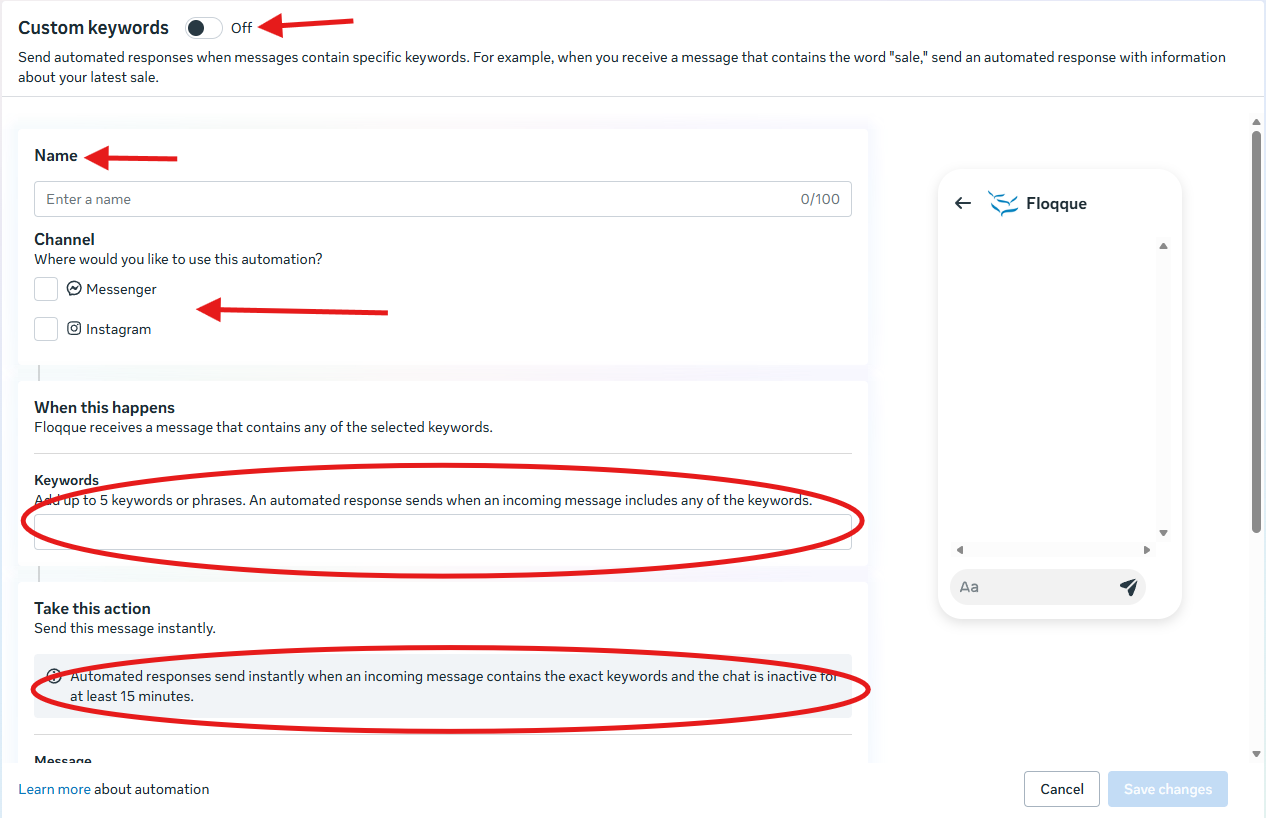
2. Choose which channels (Messenger and/or Instagram) you want this automation to run on.
3. Add up to 5 keywords or phrases, exact spelling and capitalization matter, so think about how people actually type, not how you'd write it in a sentence.
4. Write your message in the box below. Watch the live preview on the right so you know exactly what people will see, and keep an eye on the character counter, there's a 500-character cap.
EnRoute link goes here, either typed into the text or added as an actual clickable button using the Button option below the message box.
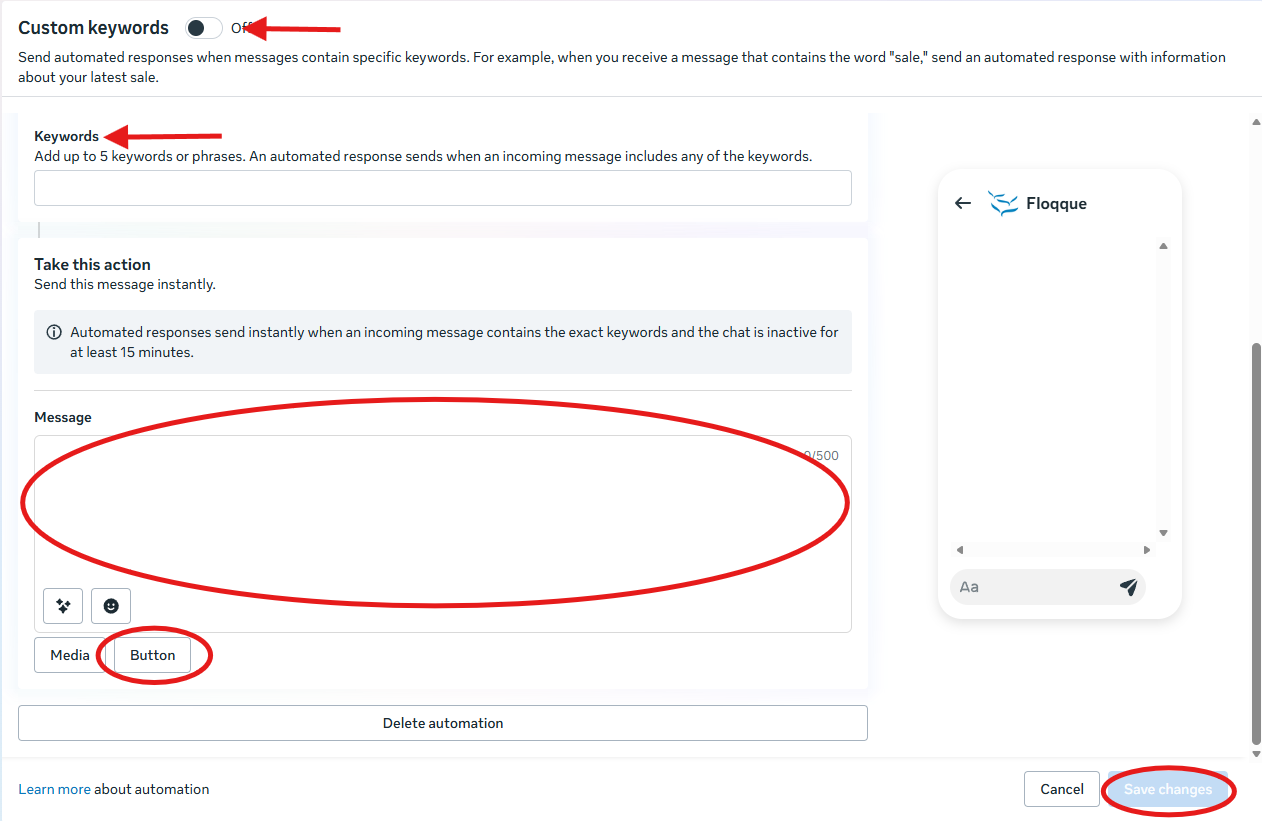
5. Check the toggle at the very top of the screen to make sure it's flipped to "ON." Saving your message doesn't automatically do that.
6. Hit Save changes.
Send yourself a test message using one of your keywords. One thing to remember while testing: it won't reply instantly if you're actively chatting, it waits until the conversation's been quiet for at least 15 minutes.
Mobile Instructions
For iPhone Users: I'm still tracking down an iPhone to test these steps on. Until then, follow the Android steps below. Things might be in slightly different spots, so keep an eye out for Tools, Settings, and Automations.
For Android Users: I tested these steps using a Galaxy S26 Ultra.
Accessing the Setup Menu on Android Phones
1. Open the Meta Business Suite app.
2. Tap Tools.
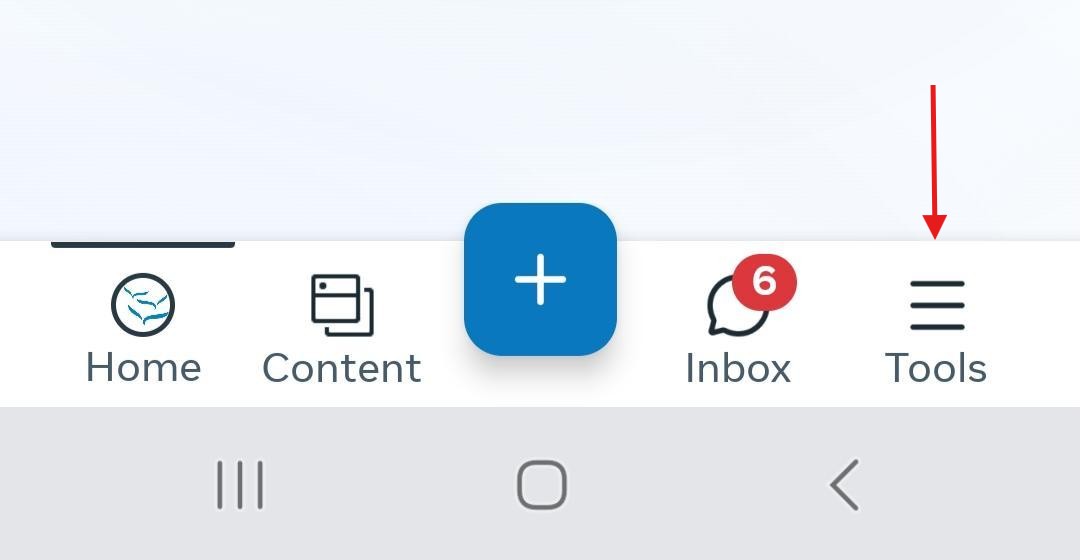
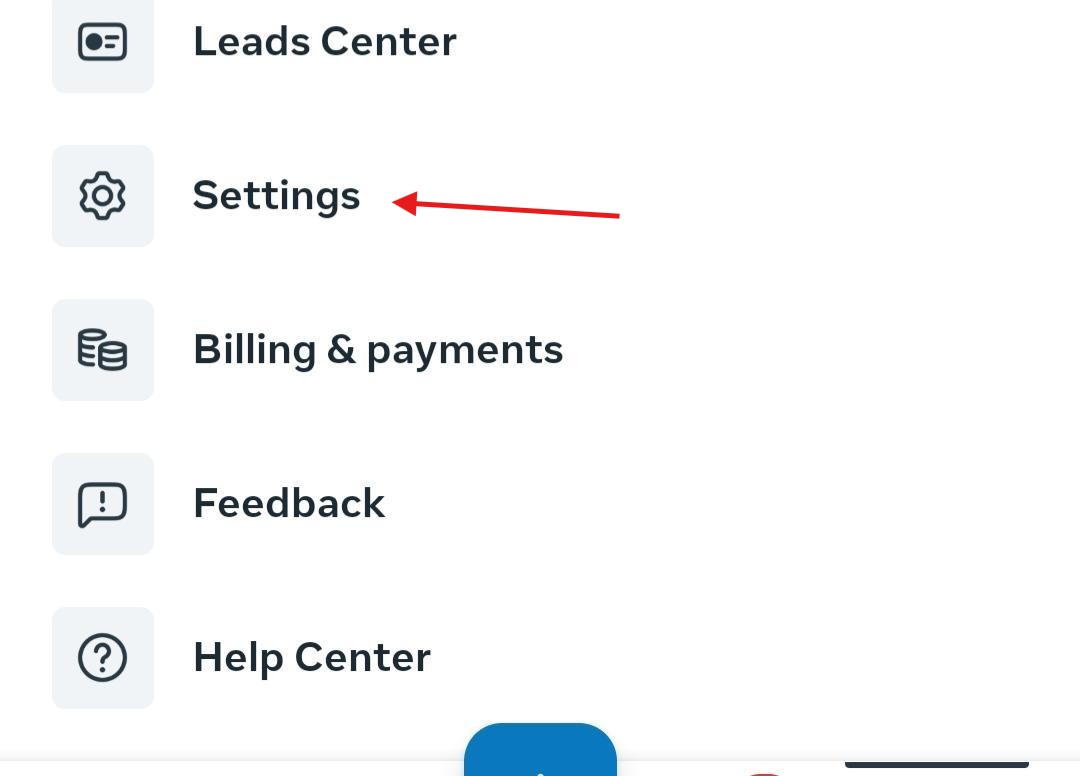
3. Tap Settings.
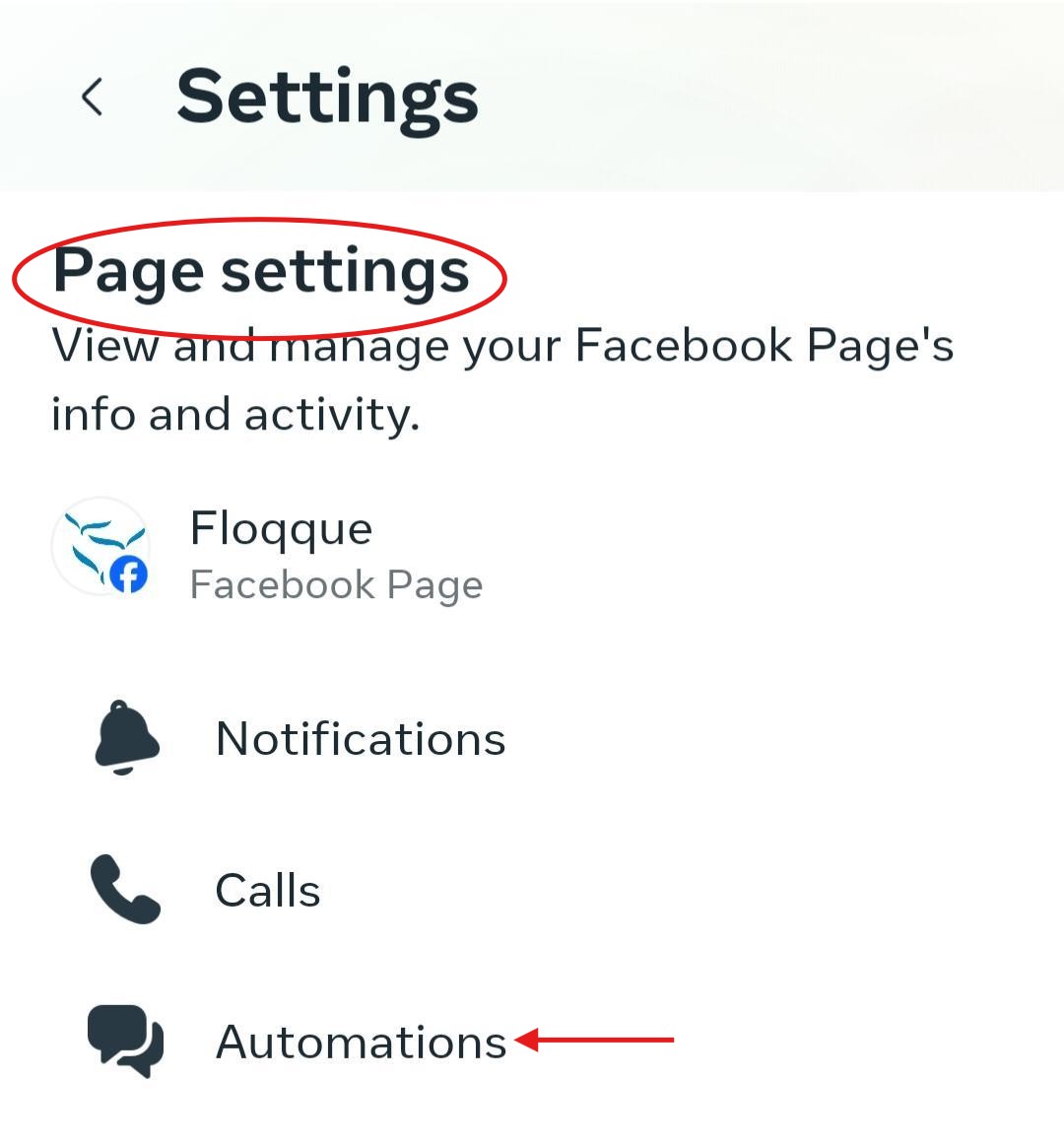
4. Scroll down to Page settings, and tap Automations.
5. Tap Try it on the template you want (Instant Reply or Away Message, Custom keywords is desktop-only).
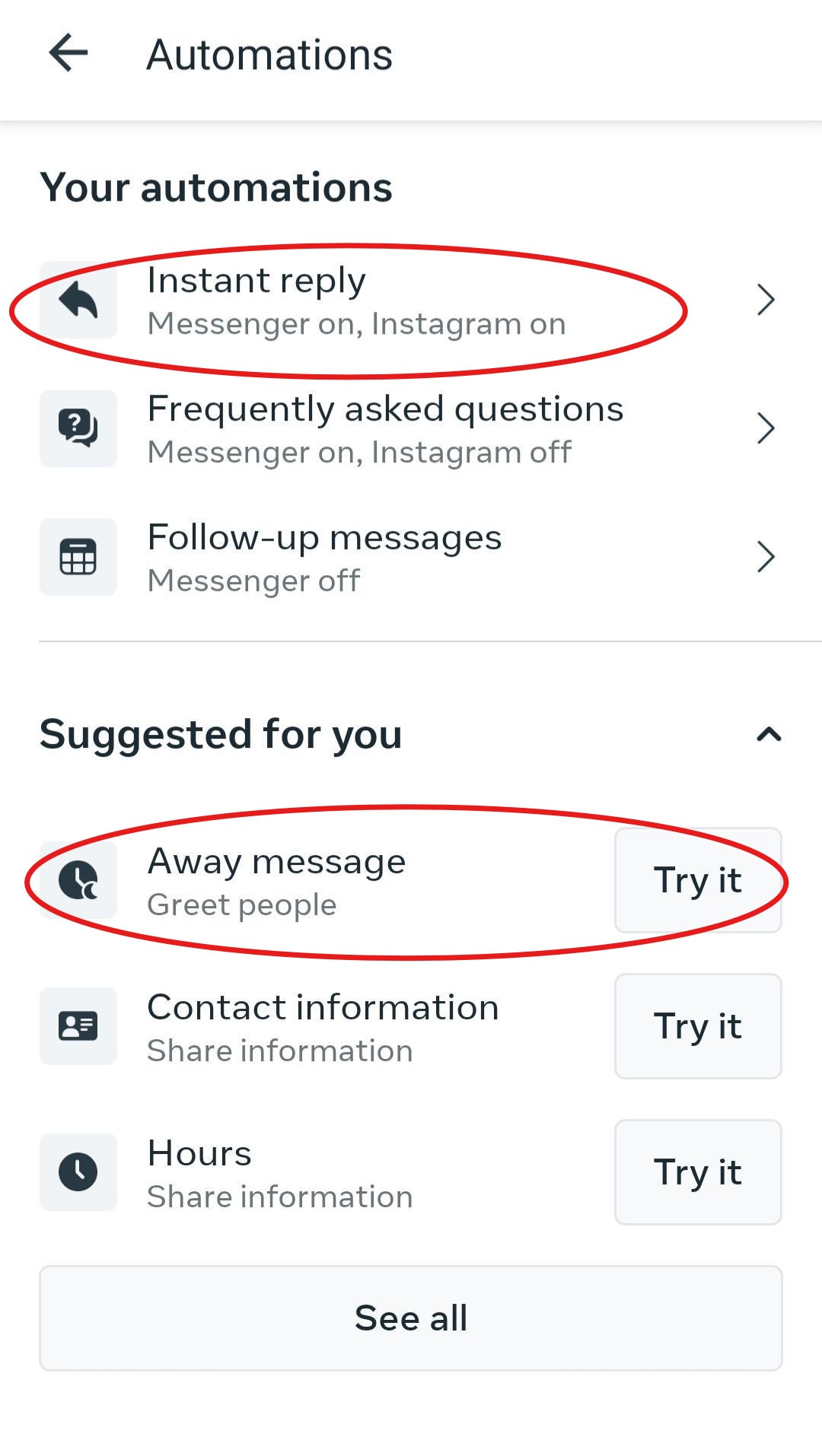
Setting Up Auto Reply on Android Phones
If you selected the Auto Reply or Instant Reply template, these are your next steps. Note: Meta's own labeling is a little inconsistent here, you may see this listed as "Instant reply" in one spot and "Auto reply" in another. Same feature, just Meta being Meta.
1. Choose which channels (Messenger and/or Instagram) you want this automation to run on. Selecting the channel automatically turns it on.
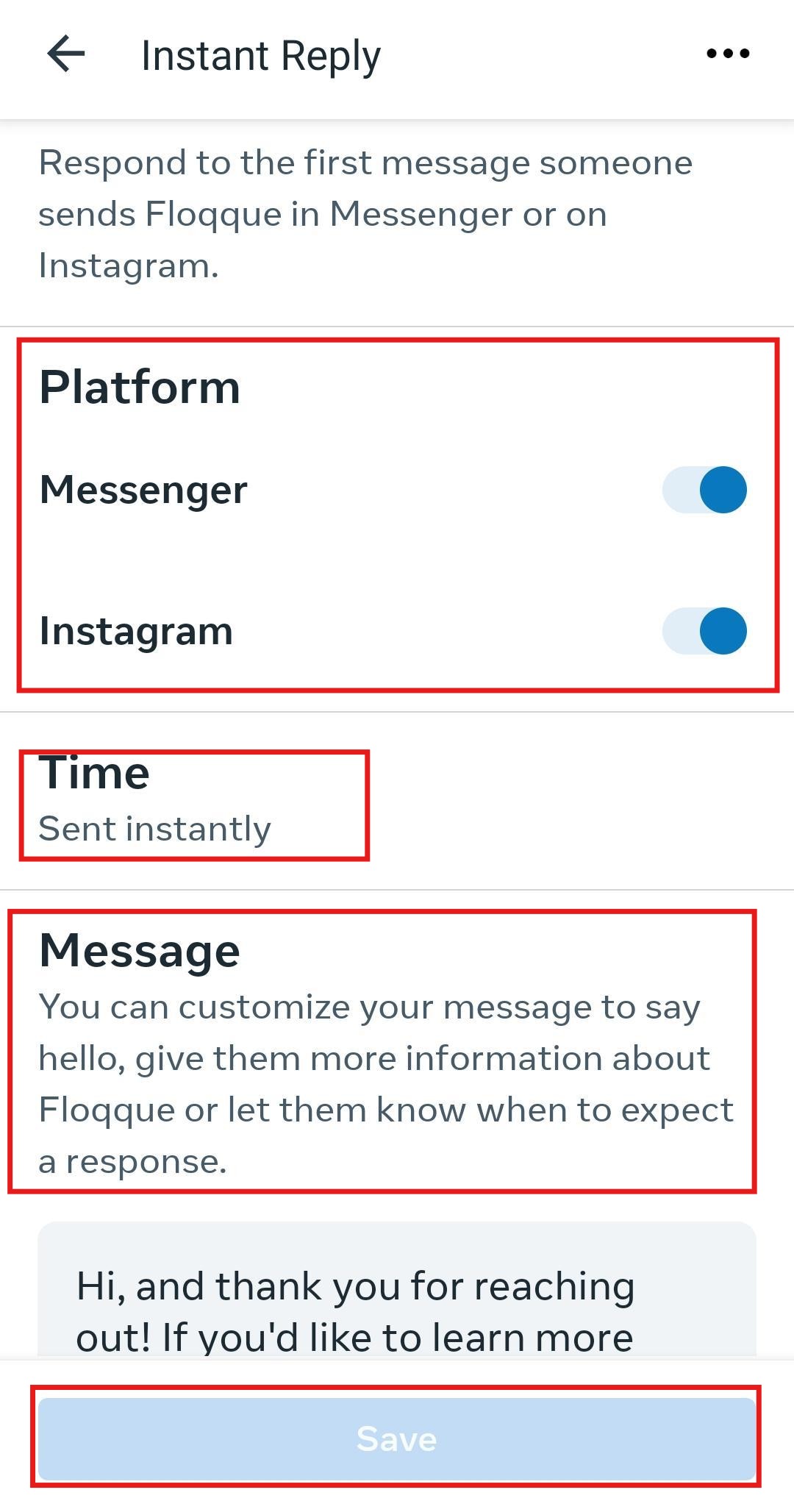
2. Write your message in the box below. This is where your EnRoute link goes, if you've got one.
3. Tap Save.
Give it a minute. Sometimes it can take a little while to actually go live. Then send yourself a test message to make sure it does what you want it to do.
Setting Up Away Message on Android Phones
If you selected the Away Message template, these are your next steps. The one thing that's different: Timing.
1. Choose which channels (Messenger and/or Instagram) you want this automation to run on. Selecting the channel automatically turns it on.
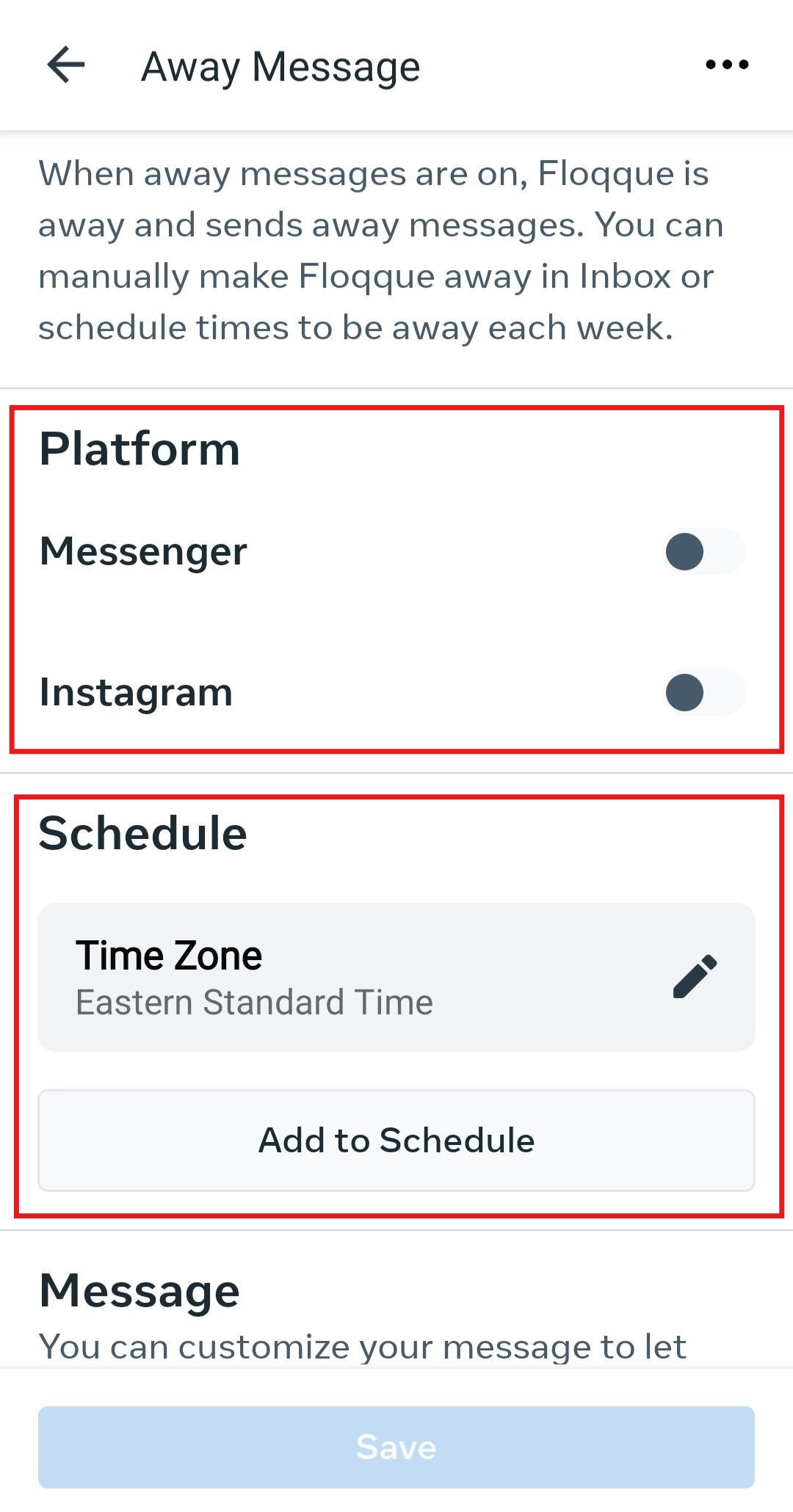
2. Set your away hours. You've got two options: manually flip your status to "Away" whenever you're actually stepping out, or schedule specific days and hours every week (with your timezone) so it handles itself without you remembering to flip anything.
First, set your time zone by tapping the pencil, then typing in your location.
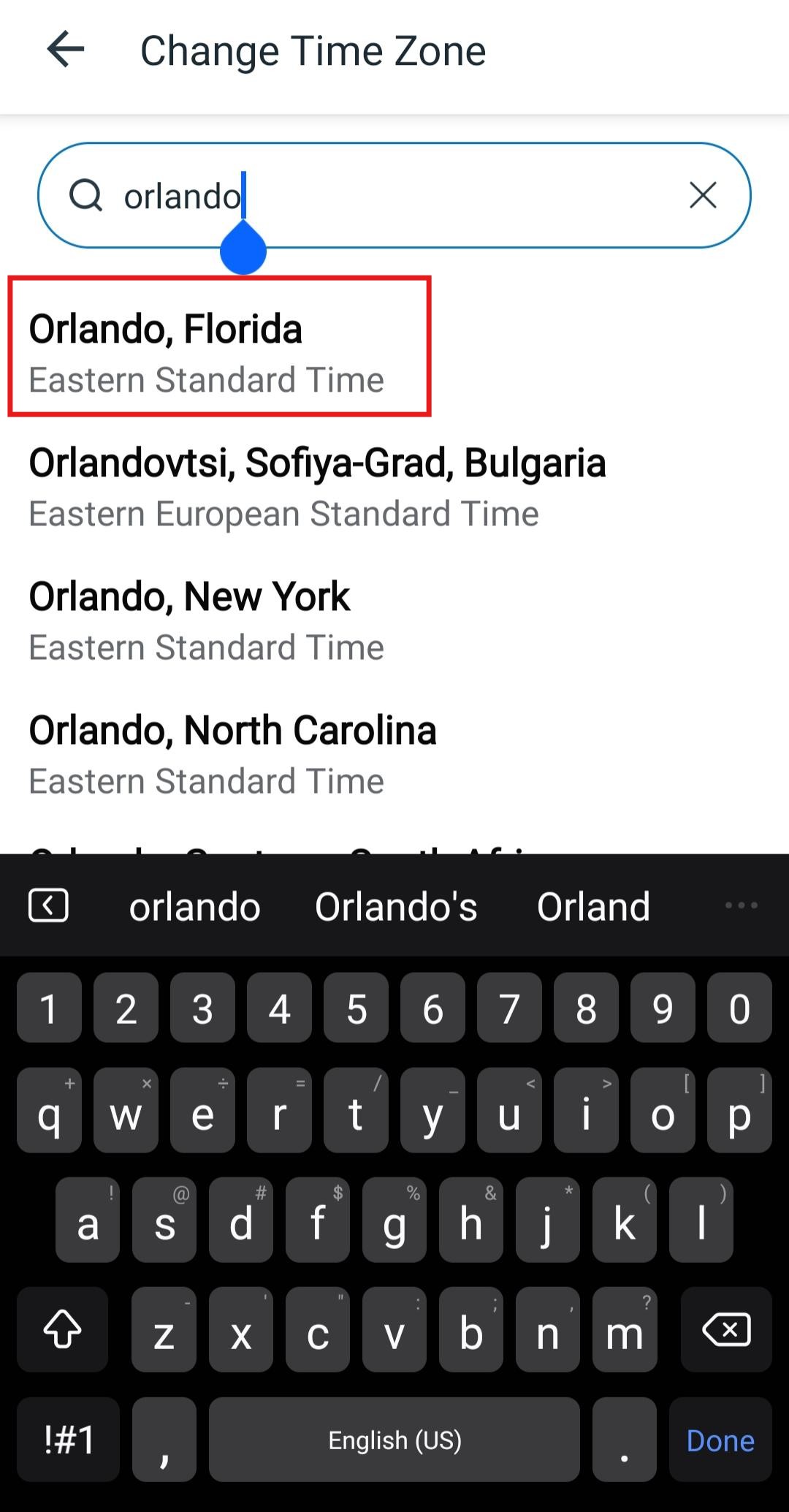
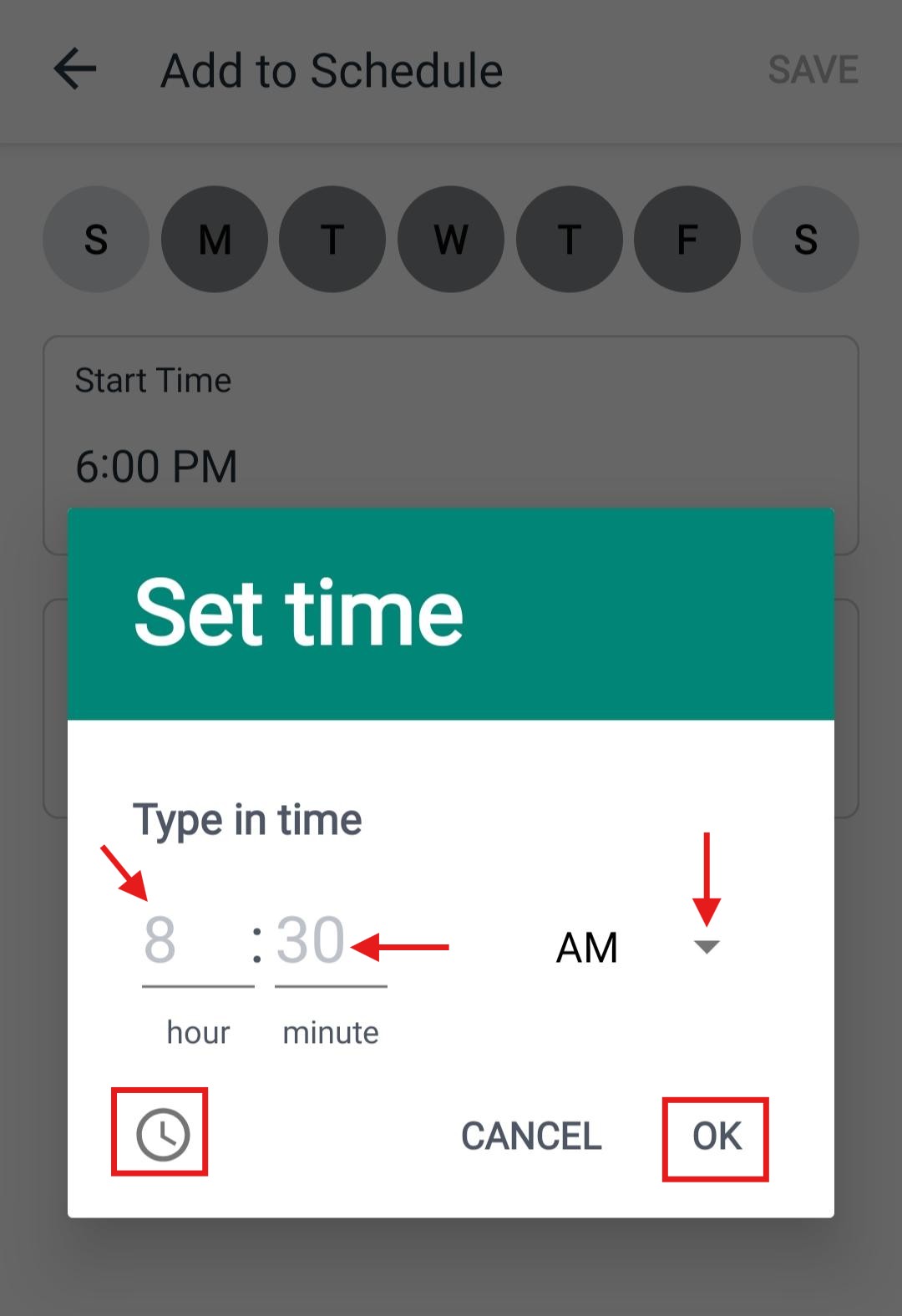
Then, set the times you want it run.
Start by tapping the Add to Schedule button.
If you want it to run when you're closed, you'll have to add two different schedules. One for closing time until 11:59 PM, and the other for 12:00 AM until opening time. For the days you're closed, you can just set one 24-hour schedule.
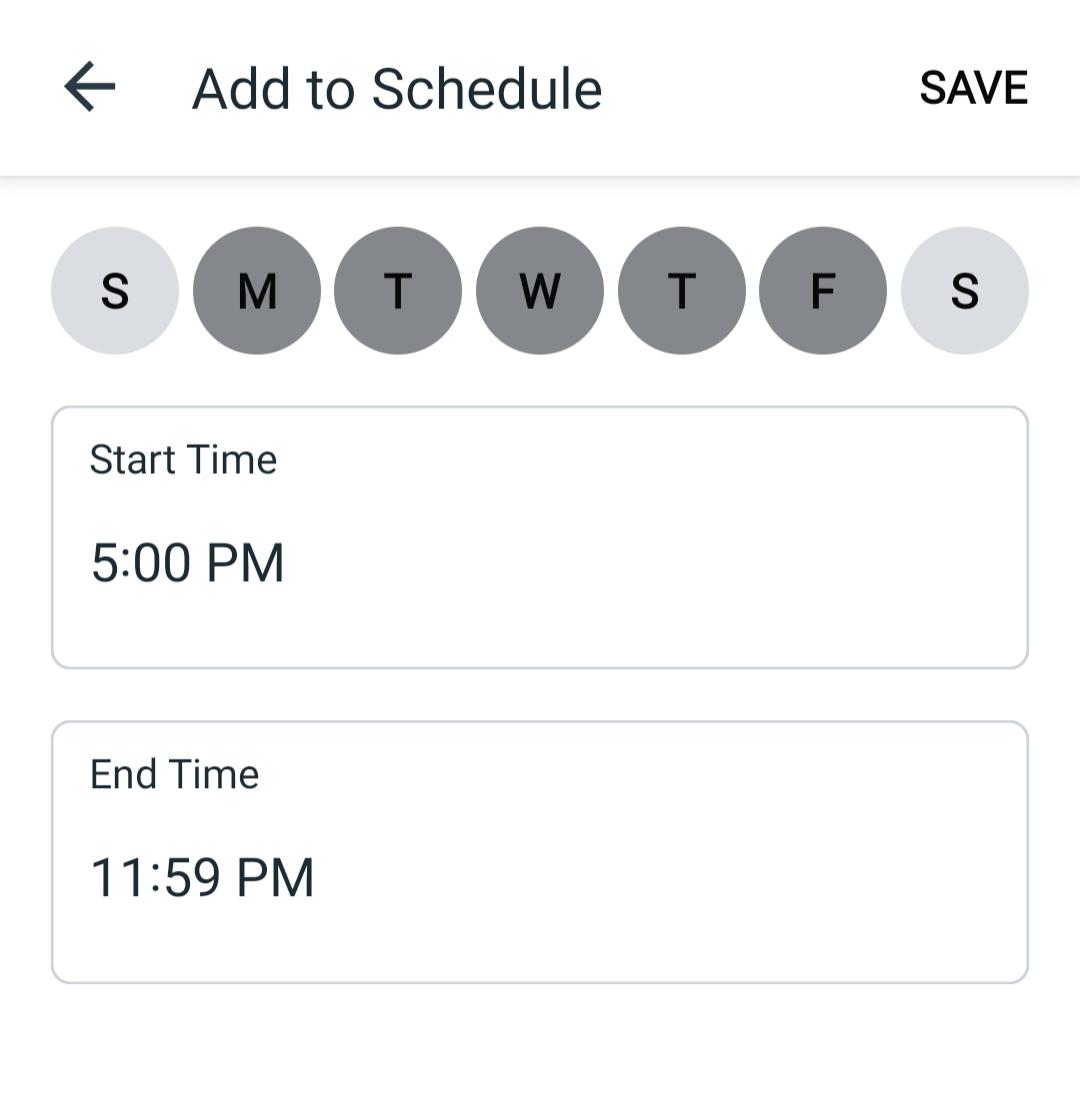
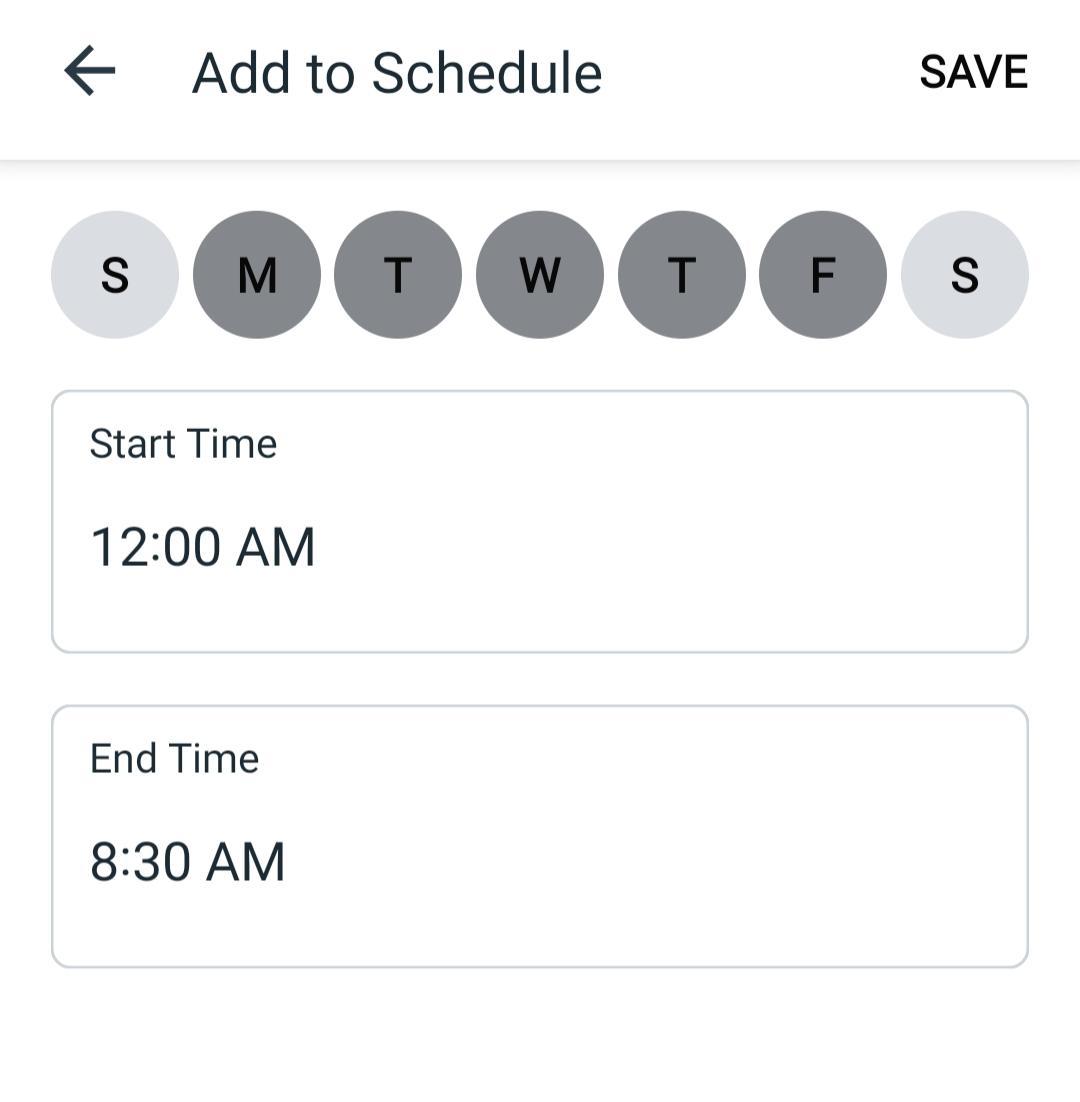
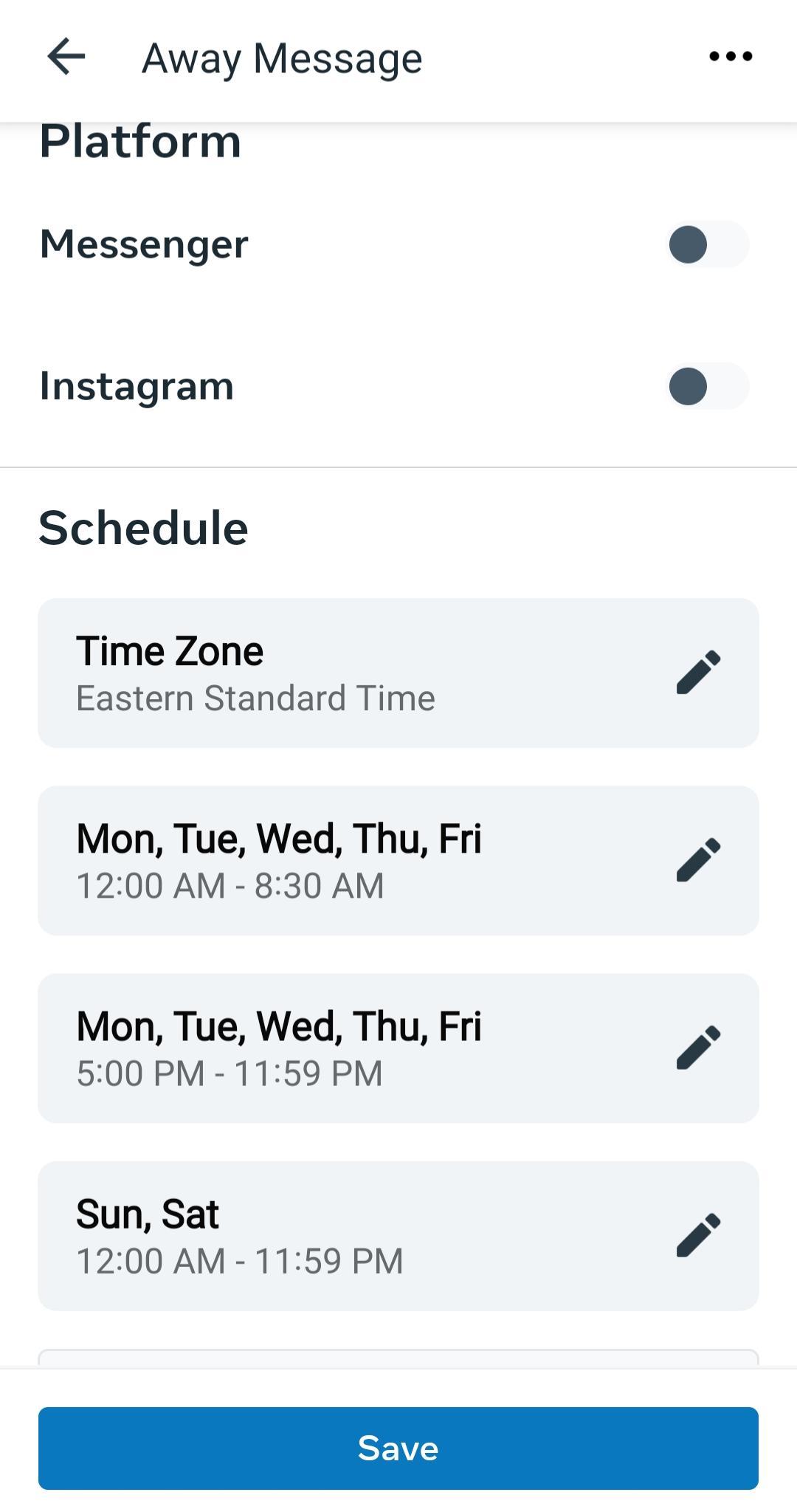
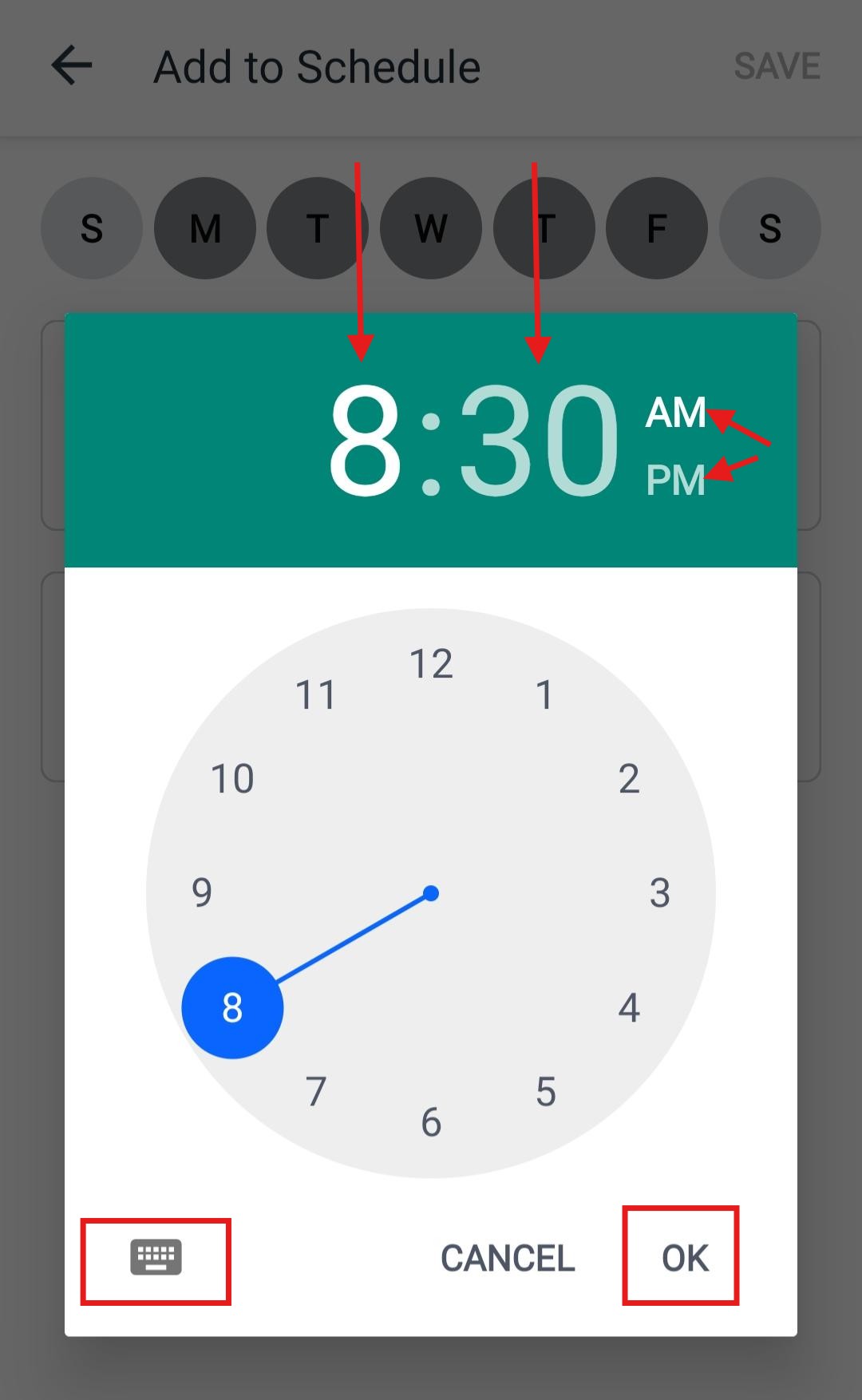
The app allows you to set the times using either a clock-face, or by typing it in. You can toggle between the two options by tapping the icon at the bottom left.
Don't forget to tap OK when you're done!
3. Write your message in the box below. This is where your EnRoute link goes, if you've got one. Watch the live preview on the right so you know exactly what people will see, and keep an eye on the character counter, there's a 500-character cap.
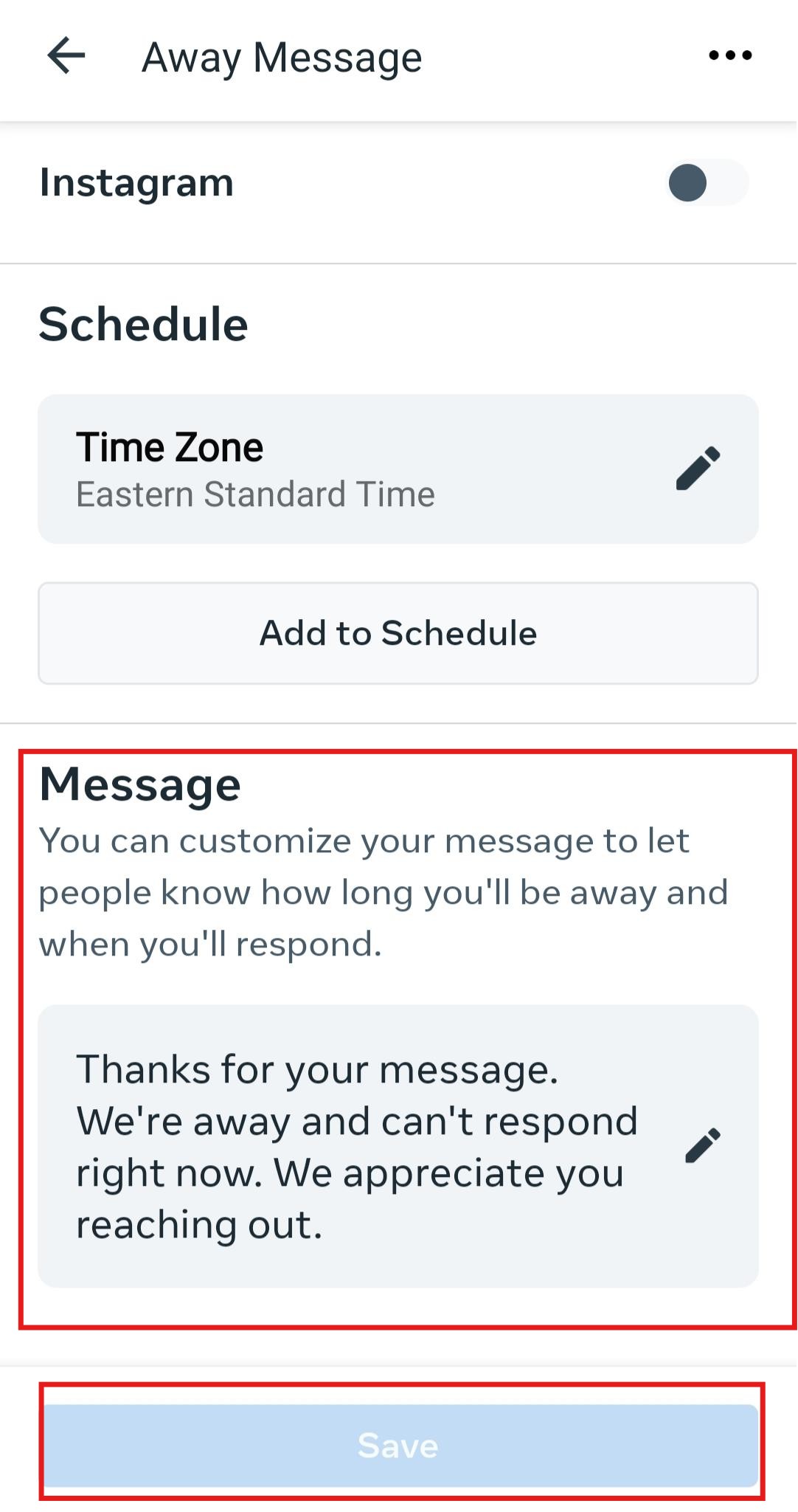
4. Don't forget to tap Save. 
Send yourself a test message (outside your scheduled hours, or after manually flipping your status to "Away") to confirm it works.
What do I even write for an autoresponse, though?
Ok, now for the hard part! If you've gotten this far, I'm going to assume you read the steps (or at least skimmed them) and you know how to build these. Let's talk about what actually goes inside them, because a bad automated message is almost worse than no message at all.
- Keep it short. Nobody wants to get out their reading glasses for what is, essentially, a form letter. One or two sentences does the job.
- Give them one clear next step, not five. Don't list your website, your phone number, your email, and your hours all in one message. Give them direction by picking the one thing you actually want them to do. If you've got an EnRoute link, this is the perfect place to put it since it answers most of the questions people are asking already.
- Watch your character count. 500 characters sounds generous until you're mid-sentence and you're still waxing poetic.
- Recognize the time and effort that they put into finding and contacting you. "Thanks for reaching out!" on its own doesn't make anyone excited to hear from you. Compare:
- Skip: "Your message has been received and will be addressed in due course."
- Try: "Got it! We'll get back to you within the hour."
- Skip: "We are currently unavailable and unable to respond at this time."
- Try: "We're off the clock right now, back online tomorrow at 9am. Hang tight!"
One's a form letter. The other sounds like a person, even though neither of them technically is one.
And one practical thing: whatever link or button you land on, reuse it everywhere. You don't need a different message for Instant Reply, Away Message, and Keyword triggers, you need the same good one, copy-pasted three times.
This has already been a long post with A LOT of information, so I'm going to take my own advice and keep it short (ha!).
Let's be serious for a second. You didn't start your business to be pen pals with your customers, but that's what good customer service is about: communication.
In today's society where instant gratification and FOMO are changing the way customers interact with businesses they're interested in, you can't afford to lose any time in providing the answers they're looking for on social media, your website, or searching that great crystal ball known as Google.
Using an autoresponder to share a link with answers to their most common questions is an invaluable tool. And pairing it with EnRoute means that your potential customers can find those answers faster.
Fewer messages to respond to, fewer chances of missing a message, and fewer chances of miscommunication and misunderstanding are what EnRoute is all about. If you'd like to learn how to get an EnRoute link of your own, contact us today!
Hospitality Starts Here
Our Team is helping service providers everywhere - from restaurants to barbershops - start 2026 on the right foot.
Check out how we can get more customers reliably through your door with no risk and no contract!
Request a Demo now to see it in action!